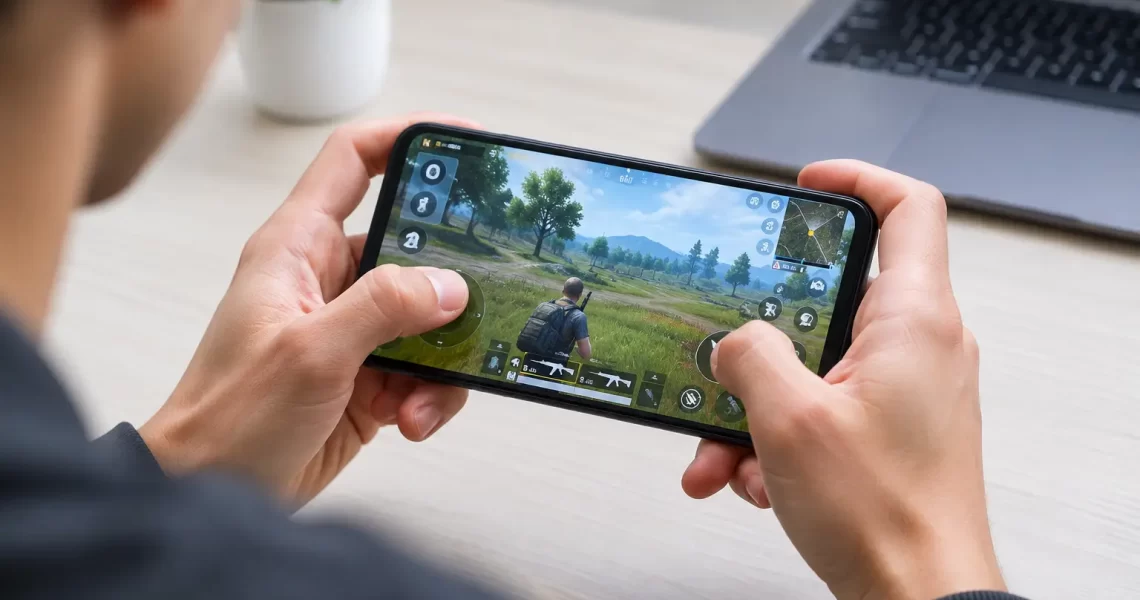
Game Overlay Software for Faster Mobile Play
5 November 2026A close fight is not the moment to hunt through notification panels, adjust brightness, or guess whether your phone is dropping frames. Game overlay software puts useful controls on top of a running game, so performance tools, touch aids, capture features, and quick settings stay within reach without breaking your focus.
For mobile players, that can mean faster setup and fewer distractions. For creators, it can mean easier recording and cleaner clips. The best overlays do not try to turn every game into a cockpit. They give you a small set of controls that solve a real problem, then get out of the way.
What Game Overlay Software Actually Does
An overlay is a layer that appears above a game or other app. Depending on the tool and the device, it may provide a floating button, a compact panel, a game dashboard, a frame-rate display, touch indicators, a crosshair, or shortcuts for recording and screenshots.
The practical value is simple: settings that normally take several taps can be available during a match. You might lock screen orientation before a ranked session, block interruptions, monitor device temperature, change a crosshair style, or start a recording when a highlight is about to happen.
On Android, overlays are commonly enabled through the system’s display-over-other-apps permission. That permission is powerful by design. It lets a utility remain visible while another app is open, which is why you should treat it like any other device permission: grant it only to software you trust, and disable it when you no longer need it.
Not every overlay works the same way. Some are built into a phone’s gaming mode. Others focus on performance controls, screen customization, creator capture, accessibility, or game-specific visual tools. iPhone and iPad users have tighter system limits, so many overlay-style features are handled through system gaming modes, screen recording, widgets, and in-app tools instead of persistent floating panels.
Choose Features That Help, Not Clutter
A useful overlay starts with the problem you want to fix. If the issue is lag, a crowded screen full of widgets will not help. If you create clips, frame-rate tuning may matter less than a reliable recording shortcut and enough free storage.
For competitive mobile games, these are the features worth evaluating:
- Performance shortcuts: Quick access to brightness, orientation lock, Do Not Disturb, refresh-rate settings, and background-app cleanup can reduce setup friction before a match.
- Frame-rate and device monitoring: A lightweight FPS, temperature, battery, or network readout can reveal why a game feels unstable. Use it to diagnose a problem, not as decoration.
- Touch and aiming customization: Crosshairs, touch indicators, and layout helpers can support personal preference, especially on large screens. They should never cover core controls or game information.
- Capture controls: One-tap screenshots, recording, and microphone controls are valuable for creators and players who want to save match highlights.
- Notification control: Blocking calls, banners, and pop-ups during a round protects focus and prevents accidental taps.
Feature count is not a quality metric. A small overlay with fast controls and low battery use is usually more valuable than an app that fills the screen with meters you never check.
Keep the Overlay Light
Every floating panel uses some system resources. On a powerful phone, the effect may be minimal. On an older device, a constantly animated overlay, live network chart, screen recorder, and graphics-heavy game can compete for memory, battery, and processing power.
Start with the fewest active features possible. Test one session with the overlay off, then test again with only the tool you need. If frame pacing gets worse, the device warms up faster, or touch response feels delayed, simplify the configuration. An overlay should support stable gameplay, not become another source of lag.
Set Up Game Overlay Software Safely
Setup should take minutes, not a full afternoon of permission prompts and menus. Install from a recognized app store when possible, review the requested access, and open the overlay settings before launching a game. Look for controls that let you adjust size, transparency, position, and activation method.
Place buttons near an edge where they will not overlap the minimap, reload control, chat, or fire button. Low opacity helps, but transparency alone does not solve a bad placement. If a control blocks information during a fast match, move it or turn it off.
Set an intentional trigger. A small floating icon is convenient, but a gesture, game dashboard shortcut, or quick-settings tile can be cleaner if the app supports it. The goal is instant access without accidental taps.
Then test the setup in a training mode, casual match, or offline game. Check whether the overlay remains in position after screen rotation, whether recordings save correctly, and whether it affects touch controls. This is also the right time to see how much battery it uses over a 20- to 30-minute session.
TOLAN-style utility tools are most useful when they stay focused on that equation: fewer interruptions, faster access to the settings that matter, and a screen layout that matches the way you play.
Performance Tools Cannot Create Hardware Power
Game overlays can improve control and visibility, but they cannot magically convert an entry-level phone into a flagship device. No floating FPS counter can add physical RAM, fix weak mobile data, or overcome a game’s server-side lag.
That distinction matters because “lag” has several causes. A low frame rate usually points to device load, heat, graphics settings, or background processes. High ping points to network conditions or game servers. Input delay can come from display settings, Bluetooth accessories, touch sensitivity, or an overloaded device.
Use overlay data to identify the pattern. If FPS falls only after 15 minutes, heat or thermal throttling may be the real issue. If the frame rate stays steady while opponents teleport, investigate your connection instead. Lowering graphics settings, closing unused apps, freeing storage, and using stable Wi-Fi often make a bigger difference than adding more overlay features.
Know the Rules Before Using Visual Tools
An overlay can be helpful without being fair-play neutral in every game. Built-in recording, notification blocking, and system performance controls are generally low-risk. But external aim assistance, automated inputs, map information, modified game files, or tools that reveal data not normally available can violate game rules and lead to account penalties.
Even a simple custom crosshair deserves a quick check. Some games allow it, some provide their own option, and some competitive environments may treat external visual aids differently. Read the game’s current rules, especially before using a tool in ranked play or tournaments.
Avoid apps that promise impossible results such as guaranteed headshots, unlimited currency, forced high FPS on unsupported hardware, or “undetectable” advantages. Those claims are a warning sign for malware, account theft, intrusive permissions, or a fast ban. Better performance comes from controlled settings and smart device management, not shortcuts that put your account at risk.
Build a Clean Match-Day Setup
The strongest setup is usually boring in the best way. Before playing, charge the device, close heavy background apps, choose graphics settings your phone can sustain, enable Do Not Disturb, and open only the overlay controls you will actually use. During play, keep the panel hidden unless you need it.
Creators can add recording and microphone controls, but should still prioritize stable frame rates over maximum visual settings. A smooth 60 FPS clip with clear audio is more watchable than a stuttering recording at ultra graphics. Competitive players may prefer a minimal crosshair or performance toggle, while casual players may get more value from quick screenshots and notification blocking.
The right game overlay software feels almost invisible. It gives you control when the match gets intense, keeps the screen clear when it does not, and helps your phone spend its resources on the game instead of unnecessary noise.