What Causes Input Lag on Android? Fix the Delay
18 October 2026A missed drag, a late aim correction, or a button press that lands a half-second behind your thumb can turn a winnable match into a loss. If you are searching what causes input lag android, the answer is rarely one broken setting. Android input lag usually comes from a chain of delays between your touch, the game engine, the phone’s processor, and the display.
The fastest fix comes from identifying which part of that chain is slowing down. A phone can have a strong processor and still feel delayed if it is overheating, running at a low refresh rate, overloaded with background apps, or connected to a Bluetooth accessory with high latency.
What Causes Input Lag on Android?
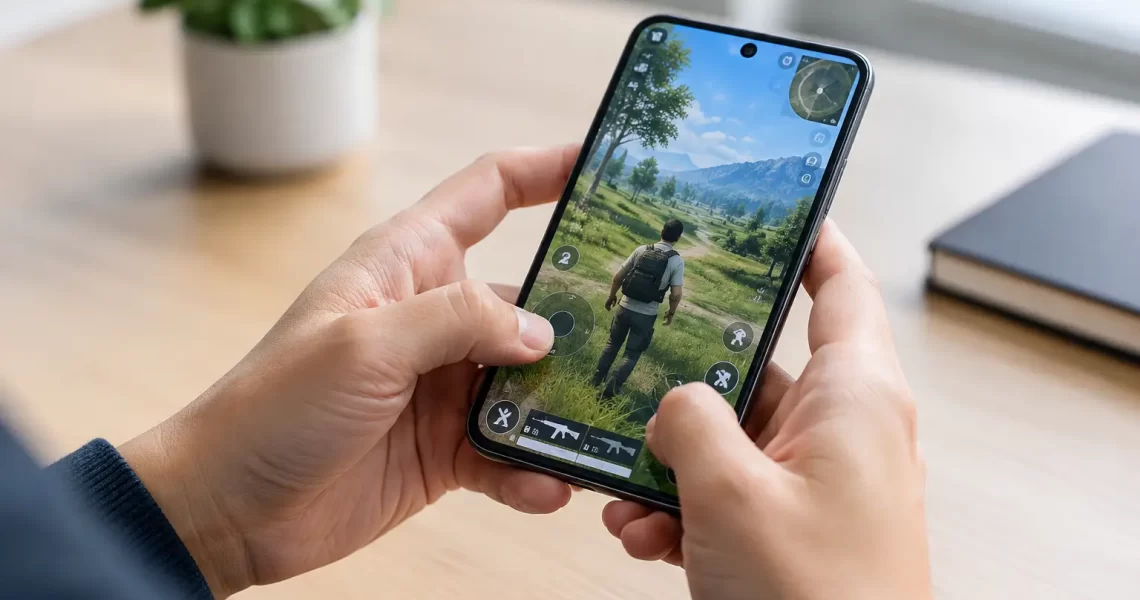
Input lag is the time between an action you make and the result you see on screen. In a mobile game, that path looks simple: tap the display, move your character, fire, and see the animation. Behind the scenes, however, your touch has to be detected, processed by Android, sent into the game, rendered into a frame, and shown by the display.
Any delay in that path adds up. A few milliseconds are normal. A noticeable delay means one or more parts of the device are underperforming, limited by settings, or waiting on a slow connection.
Low touch sampling rate
Display refresh rate and touch sampling rate are not the same thing. Refresh rate measures how often the screen updates its image. Touch sampling rate measures how often the display checks for your finger movement.
A 120Hz screen can look very smooth, but it may still feel less responsive than expected if the device reduces touch sampling to save battery or if the game does not fully support the panel. Fast shooters, racing games, and rhythm titles expose this problem quickly because every swipe and timing window matters.
Some Android phones also lower display performance automatically when battery saver is active, when the screen is warm, or when an app is not recognized as a game. Check your display settings for a high or adaptive refresh rate option, then test the game again. Adaptive mode is convenient, but a locked high setting can feel more consistent in competitive play.
Frame drops and unstable performance
Your touch may register instantly, but the game still cannot react until it renders the next frame. That is why frame drops often feel like input lag.
When a game falls from 60 frames per second to 30 or lower during a fight, the visual response to your command arrives later. Heavy graphics settings, high resolution, shadows, anti-aliasing, and particle effects can overload the GPU. On lower-end hardware, chasing maximum visual quality is often the wrong move. Stable frame pacing at lower graphics settings usually beats sharp visuals with constant stutter.
This is especially true in battle royale matches, crowded multiplayer lobbies, and games with large maps. Your phone may run well in a quiet training area, then struggle once several players, effects, and network updates hit at once.
Thermal throttling after the phone heats up
If your game starts smooth and gets worse after 15 or 20 minutes, heat is a likely cause. Android devices protect their internal components by reducing CPU and GPU speed when temperatures rise. This is called thermal throttling.
Gaming while charging, using a thick case, playing in a warm room, or running high graphics settings all create more heat. The phone may not show a warning, but performance can still drop hard enough to add delay and reduce frame rate.
Remove the case for longer sessions, avoid direct sunlight, and do not charge during a ranked match unless you need to. A cooler phone can hold higher clocks for longer. External cooling accessories can also help, though the benefit depends on the device and how aggressively it throttles.
Android Settings That Can Add Delay
Not every lag issue is a hardware limit. Several Android features are useful for everyday battery life and accessibility, yet can work against responsive gaming.
Battery saver and performance limits
Battery Saver restricts background activity and may limit CPU speed, refresh rate, animations, or network behavior. It is good for getting through the day, not for high-speed gameplay.
Turn it off before launching a demanding game. If your phone includes Game Mode, Performance Mode, or a similar feature, use it selectively. These modes can prioritize the game and reduce interruptions, but they also increase battery drain and heat. For a short competitive session, that trade-off usually makes sense. For casual play on a low battery, it may not.
Background apps, overlays, and low free storage
Music streaming, screen recording, social media, cloud backups, browser tabs, and downloads compete for memory, processing power, and network access. Android is designed to manage apps in the background, but a busy device has fewer resources available when a game needs them.
Close apps you are not using before playing. Pause large downloads and automatic updates. If storage is nearly full, clear space as well. A phone does not need to be empty, but extremely low free storage can make app behavior less reliable and leave less room for temporary game files.
Overlays deserve attention too. Floating chat heads, screen filters, auto-clickers, accessibility tools, and recording controls can interfere with touch handling or add workload. Disable them one at a time to find out whether one is causing the delay.
Outdated software or a game-specific bug
Input delay that appears immediately after an Android update or game patch may be a software problem, not a performance problem. Developers can introduce rendering bugs, touch issues, poor optimization for a specific chipset, or conflicts with new system features.
Update the game and Android when stable versions are available. If the problem began after an update, check whether it happens in other games. If only one title is affected, lower that game’s settings, clear its cache if appropriate, and watch for a patch. Resetting your entire phone should be a last step, not the first one.
Controllers, Bluetooth, and Network Confusion
Players often call every delayed action “input lag,” but the source may be outside the touchscreen.
Bluetooth controllers, earbuds, and wireless displays introduce their own latency. A controller with low battery, weak Bluetooth signal, old firmware, or interference from nearby devices can feel slow or inconsistent. Test with the phone’s touchscreen or a wired controller if supported. If the delay disappears, the game itself is probably not the main issue.
Bluetooth audio can also make a game feel late. The action may happen on time while the sound reaches your earbuds afterward. For rhythm games and precise audio cues, wired headphones or a low-latency gaming audio mode can make a real difference.
Network lag is different again. High ping does not usually delay the phone from detecting your touch. Instead, it delays when the game server receives or confirms the action. That can look similar: you fire, then damage registers late; you move, then your character snaps back; an opponent appears to react impossibly fast.
Test on a stable Wi-Fi connection, move closer to the router, or try strong mobile data. Avoid switching networks during a match. If your controls feel late even in an offline game, the problem is local device performance. If it happens only online, connection quality or server conditions are more likely.
A Fast Way to Find the Real Cause
Start with a controlled test instead of changing ten settings at once. Restart the phone, charge it above 30%, close unnecessary apps, disable Battery Saver, and launch one game. Play for five minutes with the same graphics settings you normally use.
Next, lower the game’s graphics preset while keeping the frame-rate option high. If controls become more responsive, rendering load was the issue. If the game feels good at first but worsens later, heat is the stronger suspect. If only a controller feels delayed, test touch controls or a wired connection. If the delay appears only in online matches, check ping and packet loss before blaming the phone.
For players who want a cleaner launch routine, a game utility can help organize performance settings, reduce distractions, and keep frequently used tools in one place. TOLAN’s Android-focused gaming utilities are built around that practical goal: spend less time digging through menus and more time playing at a stable, responsive setting.
Fix Input Lag Without Chasing Fake Boosts
Be cautious with apps that promise to “boost RAM” or permanently double frame rates. Android memory management does not work like a desktop task manager, and aggressive cleaners can close useful processes only for them to restart seconds later. That can actually increase stutter.
Focus on changes you can measure: higher available refresh rate, fewer frame drops, cooler device temperature, reduced background activity, and a stable connection. Use the game’s built-in frame-rate setting when available. Lower graphics before lowering frame rate. Keep enough free storage. Reboot before a long session if the phone has been running all day.
The goal is not to make every Android phone perform like a flagship. It is to remove avoidable delay so the device responds as consistently as it can. When your screen, settings, temperature, and connection are working together, your next missed shot is more likely to be a gameplay decision – not your phone arriving late.