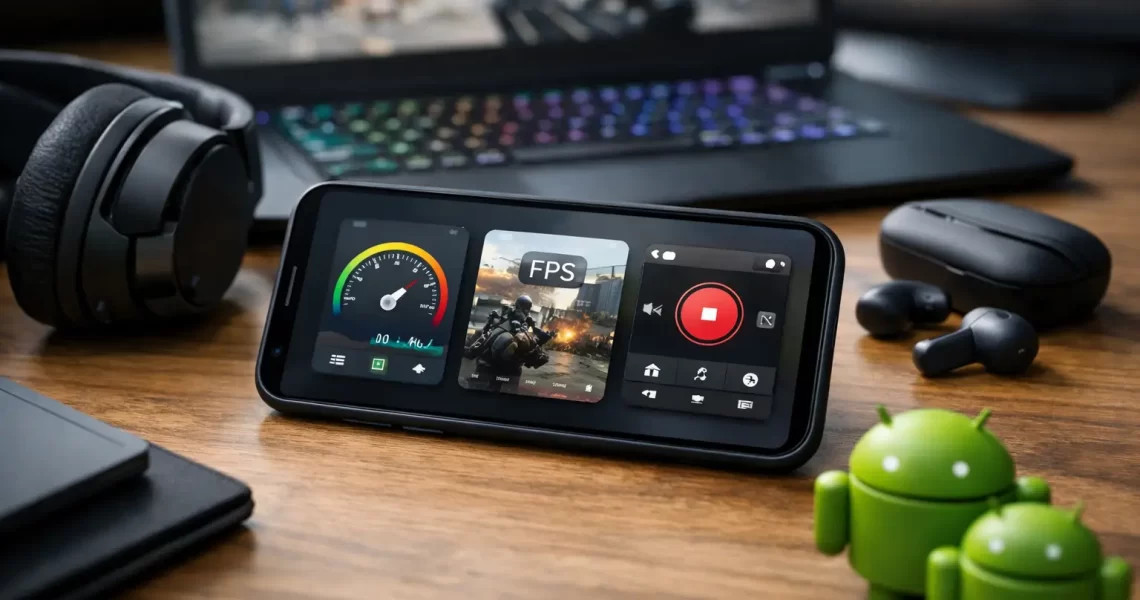
Gaming Utility Apps Comparison for Android
23 August 2026A bad match between a gaming app and your phone can make a close match worse, not better. This gaming utility apps comparison focuses on what Android players actually need: fewer frame drops, more usable controls, cleaner visuals, and personalization that does not get in the way of play.
The key is not finding one app that claims to do everything. It is choosing a focused tool for the problem you can feel during a match. Lag, overheating, cluttered controls, weak visibility, and a forgettable player identity are different problems. They need different solutions.
Gaming Utility Apps Comparison: Start With the Job
Gaming utility apps usually fall into four practical categories: game boosters, graphics and FPS tools, overlay tools, and customization apps. Some apps combine features, but the category still matters because it tells you what to test and what results to expect.
A game booster is for device management before and during play. A graphics tool is for adjusting visual settings and reducing the load placed on your phone. An overlay is for adding a control or reference point above a game. A customization tool is for your profile, nickname, or visual identity.
Treating every utility app like a performance booster leads to disappointment. A nickname generator will not improve your frame rate. A crosshair overlay will not repair a weak network connection. A graphics adjustment tool cannot turn low-end hardware into a flagship device. Good tools improve specific parts of the experience.
Game Boosters: Best for Background Cleanup
Game boosters are built for players who notice stutters after opening several apps, slow launches, delayed touches, or distracting notifications. Their main job is to prepare the phone for a session by reducing background activity and prioritizing the game.
The most useful booster features are easy to recognize. Look for one-tap game launch profiles, background app cleanup, notification control, and quick access to device settings. These features can help a phone dedicate more attention to the game instead of juggling social apps, browser tabs, downloads, and alerts.
The trade-off is that a booster cannot create processing power your device does not have. If your game is set to maximum graphics on an older phone, closing background apps may help stability, but it will not guarantee high FPS. Think of a booster as maintenance before a race, not an engine replacement.
Boosters work especially well for players who switch between games and everyday apps all day. If your phone feels fine after a restart but gets slower later, background management is likely more useful than aggressive graphics tuning.
What to test before keeping a booster
Run the same game mode with the same settings for several matches. Pay attention to load times, frame drops during fights, touch response, and whether notifications stay out of the way. Test when your phone is warm, too. A utility that only looks good in the first five minutes has not solved the real problem.
Graphics and Lag Tools: Best for Visual Control
Graphics tools are for players who want to balance image quality against stable performance. Fast shooters, battle royale games, and racing games can become harder to play when shadows, effects, high resolution, and excessive detail push a device beyond its comfort zone.
A useful graphics utility gives you meaningful choices. Frame-rate options, resolution adjustments, texture levels, shadows, anti-aliasing, and visual effects are common controls. The goal is not to lower everything. The goal is to remove the settings that cost performance without helping you play better.
For competitive games, stable FPS usually matters more than extra visual polish. Clear enemy movement and responsive aiming beat fancy shadows when the zone closes or a final round starts. Lowering shadow quality, reducing effects, and choosing a stable frame-rate target can make gameplay feel more consistent on supported devices.
There is a hard line to respect: use settings that your game and device support, and avoid tools that attempt to bypass game rules, alter protected game files, or provide unfair advantages. Performance tuning and display preferences are one thing. Anything that risks your account or damages fair play is not worth a few better-looking matches.
Also watch heat. Higher FPS and graphics settings can increase battery drain and temperature. If your phone gets hot enough to throttle performance, pushing settings higher may produce the opposite of the result you want. For longer sessions, a slightly lower but stable preset is often the smarter competitive setup.
Crosshair Overlays: Best for Consistent Aim References
Crosshair apps add an on-screen aiming reference for games that allow or benefit from one. They are most useful when a game has a minimal reticle, an inconsistent hip-fire reference, or a visual style that makes center-screen alignment difficult.
The strongest crosshair tools let you control color, size, opacity, thickness, and position. Bright green may stand out in dark interiors but disappear in grassy maps. Red may work against outdoor scenes but blend into damage indicators. A good overlay gives you enough control to create contrast without blocking targets.
This category has a clear trade-off: a crosshair that is too large becomes visual noise. Start small and use a transparent design. Your aim should benefit from a center reference, not become dependent on a giant symbol covering the target.
Before using an overlay in a competitive title, review that game’s current rules. Policies vary. If a game treats external overlays as prohibited, remove the app for that title. Smart gaming utility use includes protecting your account.
Nickname Generators: Best for a Stronger In-Game Identity
Performance is not the entire gaming experience. A clean, memorable nickname makes your profile easier to recognize in lobbies, squads, streams, and leaderboards. Nickname generators help when you want a new identity without spending an hour trying random symbols in a text field.
The best nickname tools offer readable styles, simple copying, symbols that work across many games, and enough variations to avoid generic names. A name should look sharp, but it also needs to be usable. Overloaded fonts and excessive symbols can become unreadable on small screens or fail in games with strict character rules.
Use a simple test: can a teammate say the name out loud, remember it after one match, and find it again in a friends list? If not, simplify it. A recognizable name has more value than a complicated one that only looks good in a screenshot.
How to Choose the Right App Stack
Most players do not need five utilities running at once. Too many background services, overlays, and optimization features can create their own battery, heat, and compatibility problems. Build a small setup around the issue you have now.
If your game stutters after using your phone all day, start with a booster. If matches look good but become choppy during action, test graphics settings and aim for stable FPS. If you struggle to judge center-screen placement, try a minimal crosshair overlay where allowed. If your profile feels generic, use a nickname generator and keep the final name readable.
TOLAN’s focused approach fits this logic: separate tools for separate jobs, including performance boosting, Fire GFX graphics adjustment, and crosshair and nickname customization. That is usually more practical than installing a giant app packed with features you will never use.
Check permissions and resource use
Every utility app should earn the access it requests. A crosshair overlay may need permission to display over other apps. A booster may need access related to notifications or running processes. But permissions should match the feature. Be cautious with apps that request unrelated access, flood your phone with ads, or run continuously without a clear reason.
After installation, check battery use and test your game normally. If the utility causes more heat, drains power too quickly, creates input delay, or crashes the game, remove it. A gaming tool should reduce friction, not become another problem to manage.
Measure Results, Not Marketing Claims
The fastest way to compare gaming utilities is to create a repeatable test. Use the same game, map or mode, graphics preset, network connection, and session length. Play several rounds without the app, then repeat with it enabled.
Look beyond a single FPS number. Notice whether the game holds steady when action gets busy, whether your phone gets hot later in the session, how quickly the battery falls, and whether you can still see and control everything clearly. For personalization tools, measure whether the setup feels useful after a few matches, not just exciting for the first minute.
The right utility app is the one that gives you a clear improvement with the fewest compromises. Start with one real frustration, test one focused tool, and keep only what earns a place on your phone before the next match starts.
Gaming Utility Apps Comparison for Android
23 August 2026A bad match between a gaming app and your phone can make a close match worse, not better. This gaming utility apps comparison focuses on what Android players actually need: fewer frame drops, more usable controls, cleaner visuals, and personalization that does not get in the way of play.
The key is not finding one app that claims to do everything. It is choosing a focused tool for the problem you can feel during a match. Lag, overheating, cluttered controls, weak visibility, and a forgettable player identity are different problems. They need different solutions.
Gaming Utility Apps Comparison: Start With the Job
Gaming utility apps usually fall into four practical categories: game boosters, graphics and FPS tools, overlay tools, and customization apps. Some apps combine features, but the category still matters because it tells you what to test and what results to expect.
A game booster is for device management before and during play. A graphics tool is for adjusting visual settings and reducing the load placed on your phone. An overlay is for adding a control or reference point above a game. A customization tool is for your profile, nickname, or visual identity.
Treating every utility app like a performance booster leads to disappointment. A nickname generator will not improve your frame rate. A crosshair overlay will not repair a weak network connection. A graphics adjustment tool cannot turn low-end hardware into a flagship device. Good tools improve specific parts of the experience.
Game Boosters: Best for Background Cleanup
Game boosters are built for players who notice stutters after opening several apps, slow launches, delayed touches, or distracting notifications. Their main job is to prepare the phone for a session by reducing background activity and prioritizing the game.
The most useful booster features are easy to recognize. Look for one-tap game launch profiles, background app cleanup, notification control, and quick access to device settings. These features can help a phone dedicate more attention to the game instead of juggling social apps, browser tabs, downloads, and alerts.
The trade-off is that a booster cannot create processing power your device does not have. If your game is set to maximum graphics on an older phone, closing background apps may help stability, but it will not guarantee high FPS. Think of a booster as maintenance before a race, not an engine replacement.
Boosters work especially well for players who switch between games and everyday apps all day. If your phone feels fine after a restart but gets slower later, background management is likely more useful than aggressive graphics tuning.
What to test before keeping a booster
Run the same game mode with the same settings for several matches. Pay attention to load times, frame drops during fights, touch response, and whether notifications stay out of the way. Test when your phone is warm, too. A utility that only looks good in the first five minutes has not solved the real problem.
Graphics and Lag Tools: Best for Visual Control
Graphics tools are for players who want to balance image quality against stable performance. Fast shooters, battle royale games, and racing games can become harder to play when shadows, effects, high resolution, and excessive detail push a device beyond its comfort zone.
A useful graphics utility gives you meaningful choices. Frame-rate options, resolution adjustments, texture levels, shadows, anti-aliasing, and visual effects are common controls. The goal is not to lower everything. The goal is to remove the settings that cost performance without helping you play better.
For competitive games, stable FPS usually matters more than extra visual polish. Clear enemy movement and responsive aiming beat fancy shadows when the zone closes or a final round starts. Lowering shadow quality, reducing effects, and choosing a stable frame-rate target can make gameplay feel more consistent on supported devices.
There is a hard line to respect: use settings that your game and device support, and avoid tools that attempt to bypass game rules, alter protected game files, or provide unfair advantages. Performance tuning and display preferences are one thing. Anything that risks your account or damages fair play is not worth a few better-looking matches.
Also watch heat. Higher FPS and graphics settings can increase battery drain and temperature. If your phone gets hot enough to throttle performance, pushing settings higher may produce the opposite of the result you want. For longer sessions, a slightly lower but stable preset is often the smarter competitive setup.
Crosshair Overlays: Best for Consistent Aim References
Crosshair apps add an on-screen aiming reference for games that allow or benefit from one. They are most useful when a game has a minimal reticle, an inconsistent hip-fire reference, or a visual style that makes center-screen alignment difficult.
The strongest crosshair tools let you control color, size, opacity, thickness, and position. Bright green may stand out in dark interiors but disappear in grassy maps. Red may work against outdoor scenes but blend into damage indicators. A good overlay gives you enough control to create contrast without blocking targets.
This category has a clear trade-off: a crosshair that is too large becomes visual noise. Start small and use a transparent design. Your aim should benefit from a center reference, not become dependent on a giant symbol covering the target.
Before using an overlay in a competitive title, review that game’s current rules. Policies vary. If a game treats external overlays as prohibited, remove the app for that title. Smart gaming utility use includes protecting your account.
Nickname Generators: Best for a Stronger In-Game Identity
Performance is not the entire gaming experience. A clean, memorable nickname makes your profile easier to recognize in lobbies, squads, streams, and leaderboards. Nickname generators help when you want a new identity without spending an hour trying random symbols in a text field.
The best nickname tools offer readable styles, simple copying, symbols that work across many games, and enough variations to avoid generic names. A name should look sharp, but it also needs to be usable. Overloaded fonts and excessive symbols can become unreadable on small screens or fail in games with strict character rules.
Use a simple test: can a teammate say the name out loud, remember it after one match, and find it again in a friends list? If not, simplify it. A recognizable name has more value than a complicated one that only looks good in a screenshot.
How to Choose the Right App Stack
Most players do not need five utilities running at once. Too many background services, overlays, and optimization features can create their own battery, heat, and compatibility problems. Build a small setup around the issue you have now.
If your game stutters after using your phone all day, start with a booster. If matches look good but become choppy during action, test graphics settings and aim for stable FPS. If you struggle to judge center-screen placement, try a minimal crosshair overlay where allowed. If your profile feels generic, use a nickname generator and keep the final name readable.
TOLAN’s focused approach fits this logic: separate tools for separate jobs, including performance boosting, Fire GFX graphics adjustment, and crosshair and nickname customization. That is usually more practical than installing a giant app packed with features you will never use.
Check permissions and resource use
Every utility app should earn the access it requests. A crosshair overlay may need permission to display over other apps. A booster may need access related to notifications or running processes. But permissions should match the feature. Be cautious with apps that request unrelated access, flood your phone with ads, or run continuously without a clear reason.
After installation, check battery use and test your game normally. If the utility causes more heat, drains power too quickly, creates input delay, or crashes the game, remove it. A gaming tool should reduce friction, not become another problem to manage.
Measure Results, Not Marketing Claims
The fastest way to compare gaming utilities is to create a repeatable test. Use the same game, map or mode, graphics preset, network connection, and session length. Play several rounds without the app, then repeat with it enabled.
Look beyond a single FPS number. Notice whether the game holds steady when action gets busy, whether your phone gets hot later in the session, how quickly the battery falls, and whether you can still see and control everything clearly. For personalization tools, measure whether the setup feels useful after a few matches, not just exciting for the first minute.
The right utility app is the one that gives you a clear improvement with the fewest compromises. Start with one real frustration, test one focused tool, and keep only what earns a place on your phone before the next match starts.