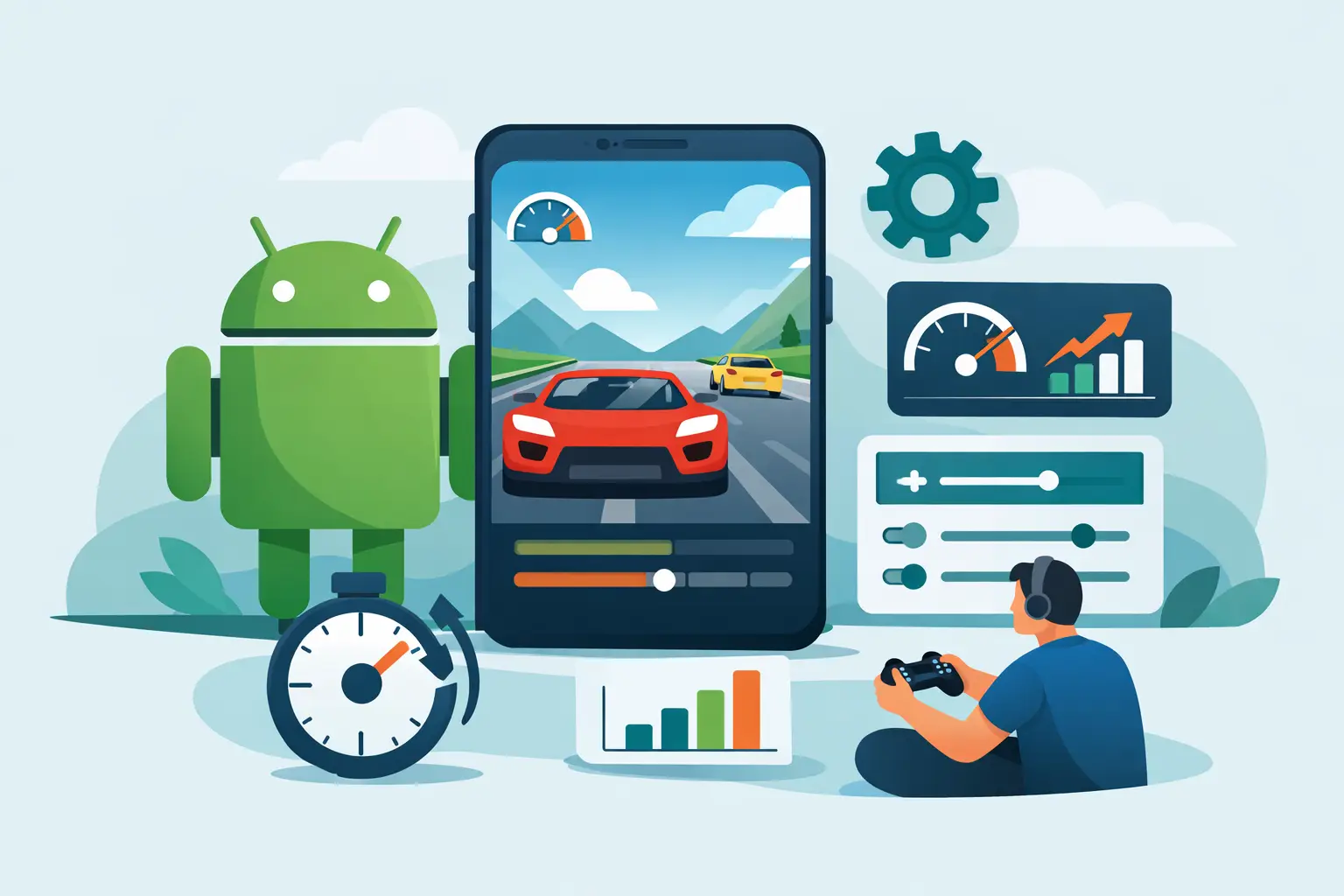
Android Frame Rate Optimization Guide for Gamers
11 August 2026A match can be lost in the moment your screen hesitates. Your aim drags, an enemy skips across the display, or a close-range fight turns into a slideshow. This Android frame rate optimization guide focuses on the settings and habits that actually improve consistency, not fake performance promises.
Frame rate is more than a number in a menu. It affects how quickly movement appears on screen, how clean your camera turns feel, and how predictable your controls become during a fight. The goal is not always to force the highest FPS possible. The goal is to hold a stable frame rate your phone can sustain without overheating, throttling, or draining its battery before the session ends.
Start With a Stable FPS Target
Many games offer graphics presets plus frame rate options such as 30, 40, 60, 90, or 120 FPS. Choosing the maximum setting looks like the obvious move, but it is often the wrong one on mid-range phones. If a device jumps between 90 FPS and 45 FPS, it can feel worse than a locked 60 FPS.
Start by selecting the highest frame rate your phone can maintain through a full match. Play for 15 to 20 minutes, especially in crowded fights, large maps, or effects-heavy areas. If the game becomes choppy as the device warms up, lower the FPS target one step before lowering everything else.
A consistent 60 FPS is the sweet spot for many Android gamers. It gives responsive motion, broad device compatibility, and less heat than aggressive 90 or 120 FPS settings. High-refresh gaming is worth using when your display supports it and the game is well optimized, but only when your hardware can keep up.
Android Frame Rate Optimization Guide: Tune Graphics First
Once you have your FPS target, adjust the graphics settings that create the biggest load. Resolution, shadows, anti-aliasing, draw distance, particle effects, and post-processing all compete for GPU power. Not every setting matters equally in a competitive match.
Lower shadows first. Dynamic shadows can look great in screenshots, but they are expensive and rarely help you track targets. Then reduce effects quality and post-processing. Motion blur, bloom, depth of field, and heavy color filters can make a game look cinematic while making fast gameplay less clear.
Texture quality is different. If your phone has enough RAM, medium or high textures may have a smaller FPS impact than shadows or effects. Keep textures high enough for players, loot, and map details to remain easy to read, then cut the visual extras that do not improve decisions.
Resolution is the bigger trade-off. Lowering it can deliver a major performance gain, especially in battle royale games, but excessive reduction makes distant enemies harder to spot. Test one level down before going to the lowest option. You want a clearer, steadier fight, not a blurry screen that costs you information.
Set Your Phone Up Before Launching a Game
Android performance depends on what is happening outside the game as much as what is happening inside it. Background apps can use memory, trigger notifications, run sync jobs, or compete for your network connection. Clean up before you queue.
Close apps you are not using, particularly browsers with many tabs, social media apps, streaming services, and screen recorders. Do not rely on repeatedly force-closing every system process. Android manages background memory on its own, and aggressive task killing can sometimes cause apps to reload and use more power later. Focus on the obvious resource-heavy apps instead.
Turn on your phone’s built-in Game Mode, Game Booster, or performance profile if it is available. These modes typically prioritize the game, reduce interruptions, and may allow a higher performance limit. The exact result depends on the phone maker, but it is usually a better starting point than random “FPS booster” apps that promise impossible gains.
For players who want a dedicated setup, a focused gamer utility such as TOLAN’s performance tools can help manage graphics preferences and reduce common lag sources. Treat any optimization tool as a control panel, not a magic button. The best results still come from sensible settings matched to your device.
Control Heat Before Heat Controls Your FPS
Thermal throttling is one of the biggest reasons a game starts smoothly and becomes unstable later. As your phone heats up, it lowers CPU and GPU speeds to protect the hardware. That means sudden frame drops, delayed touches, and weaker performance in the part of the match that matters most.
Avoid gaming in direct sunlight, under blankets, or while the phone is trapped in a thick insulating case. Remove the case for long sessions if it holds heat, provided the phone is safe in your grip. A small mobile cooling fan can help during extended competitive play, especially with high FPS modes.
Charging while gaming adds heat. If possible, start with enough battery to finish several matches without plugging in. If you must charge, use a quality charger and cable, keep the phone ventilated, and avoid combining charging with maximum graphics and maximum brightness.
Brightness is another balance point. A very bright display can increase heat and battery use. Set it high enough to see clearly, then avoid max brightness indoors unless you truly need it. Adaptive brightness can also change visibility at the wrong time, so competitive players may prefer a manual level.
Fix Network Lag Separately From Frame Drops
Not all lag is frame rate lag. When your FPS falls, movement looks uneven on your own screen. When your connection spikes, enemies may teleport, shots may register late, or you may get pushed back to an earlier position. Lowering graphics will not fix a weak network.
Use stable Wi-Fi when possible and stay close enough to the router for a strong signal. If your Wi-Fi is crowded, pause downloads, streaming, cloud backups, and other devices using the same connection. Mobile data can be excellent in some areas, but it varies by carrier, coverage, and congestion.
Inside the game, watch for separate FPS and ping indicators if they are available. A low FPS number points to device performance. A high or fluctuating ping number points to network conditions. Knowing which one is failing prevents pointless setting changes.
Keep Storage and Software From Becoming Hidden Problems
A nearly full phone can create problems with game updates, caching, recordings, and general system behavior. Leave meaningful free space instead of filling storage to the limit. Clearing old videos, duplicate downloads, and unused apps is more useful than constantly clearing every app cache.
Keep your game updated, especially after major season changes. Developers often fix crashes, shader issues, and device-specific performance problems in patches. Update Android and your phone’s graphics-related system components when stable releases are available, but avoid installing a major update minutes before a tournament or ranked push. Give it time to settle and confirm that your game runs normally.
Developer Options can expose advanced controls, but they are not a shortcut to more FPS. Features such as Force 4x MSAA can increase GPU load and hurt performance in many games. Do not change settings you cannot explain or reverse. A clean, repeatable configuration beats a phone full of experimental tweaks.
Use a Fast Pre-Match Check
Before a serious session, run through four quick checks:
- Set your in-game FPS target and graphics preset for stability.
- Close heavy background apps and enable your phone’s gaming mode.
- Confirm Wi-Fi strength or mobile data quality before entering ranked play.
- Keep the phone cool, charged enough, and free from unnecessary notifications.
After that, stop changing settings every match. Play several rounds with the same configuration and judge the result when action gets intense. Randomly switching presets makes it hard to identify what helped.
The best Android gaming setup is the one that stays responsive in the final circle, the last lap, or the deciding team fight. Build around stable frames, clear visuals, and controlled heat, then let your skill do the rest.

Visionary: AI Video Generator
Download on Google Play!