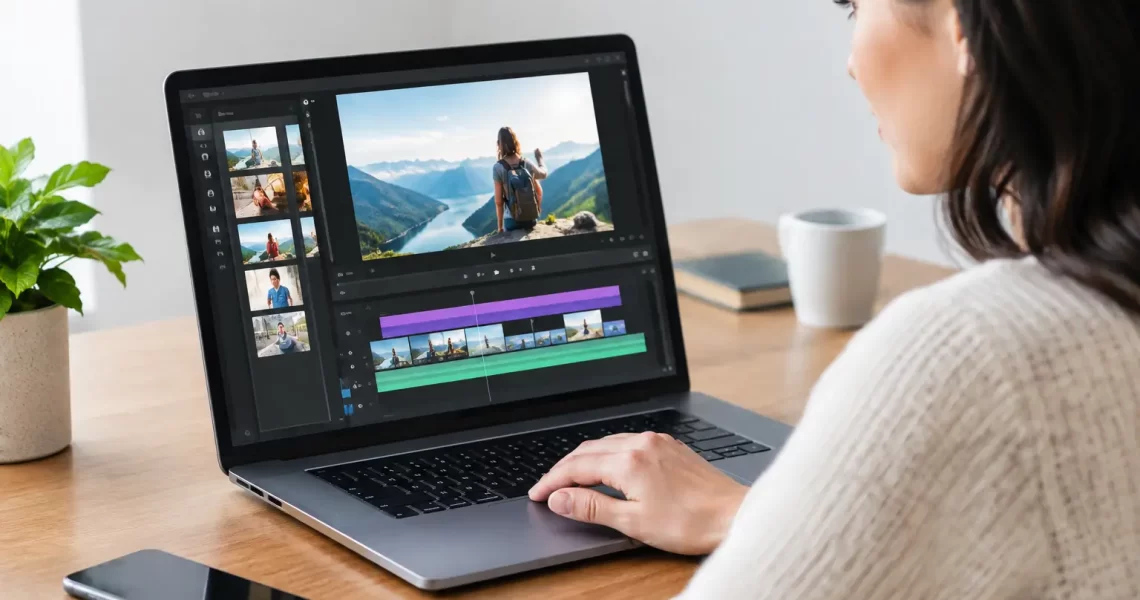
8 Best AI Tools for Reels That Save Edit Time
30 October 2026A Reel can lose its momentum in the time it takes to trim one awkward pause. The best AI tools for reels reduce that drag: they find usable moments, generate caption drafts, reshape footage for vertical screens, and help creators publish faster without turning every video into generic AI content.
For gamers, streamers, app builders, and mobile-first creators, the right tool depends on where production slows down. Some tools are built for fast edits. Others are stronger at repurposing long gameplay, generating visual assets, or putting a face and voice in front of a product. The goal is not to stack every AI feature available. It is to build a workflow that keeps your Reels sharp, readable, and worth watching past the first second.
What Makes an AI Reel Tool Actually Useful?
A good Reel tool should solve a specific production bottleneck. If you record gameplay, that may mean pulling highlights from a 30-minute session. If you create app promos, it may mean removing background noise, writing a tighter hook, or generating B-roll when you do not have a camera crew.
Speed matters, but control matters more. Auto-captions that miss gaming terms, auto-cuts that remove a key reaction, or templates that make every post look identical can hurt retention. Look for manual controls after the AI pass: editable captions, timing adjustments, export settings, brand colors, and a clean 9:16 output at 1080 x 1920.
8 Best AI Tools for Reels
1. CapCut for fast mobile edits
CapCut is a practical choice when you want to edit directly on a phone and move quickly from raw clip to post. Its AI features can generate captions, remove backgrounds, isolate speech, apply templates, and help with beat-based cuts. For gaming clips, it is especially useful for adding quick zooms, text callouts, sound effects, and reaction pacing without opening a desktop editor.
The trade-off is template overload. Use its automated effects as a starting point, then cut anything that delays the payoff. A clean kill streak, a lag-fix demonstration, or an app feature reveal usually needs fewer effects than creators think.
2. Descript for talking-head and voice-led Reels
Descript works best when spoken words drive the video. It turns recorded audio into editable text, so you can remove filler words, tighten explanations, and create clips by editing a transcript. That is useful for tutorials, product walkthroughs, creator updates, and commentary over gameplay.
Its AI-assisted cleanup can save serious time, but it is not a substitute for a good script. Review every cut around technical explanations. Removing a two-second pause is useful; removing the line that explains why a performance setting matters is not.
3. OpusClip for turning long videos into short clips
OpusClip is built for repurposing longer videos. Feed it a stream, podcast, review, or tutorial, and it identifies potential short-form moments, reframes speakers, and adds caption styling. Creators with a backlog of Twitch VODs, YouTube videos, or screen recordings can get several Reel candidates without scrubbing every minute manually.
Its clip selection is a recommendation, not a final decision. The strongest moment for a gaming audience may be a clutch play, a sudden bug, or a clear before-and-after test that AI cannot fully understand. Preview every suggested clip and rewrite the opening text for the audience you want.
4. Captions for face-forward creator videos
Captions is designed around creator-facing short videos, with automatic subtitles, eye-contact adjustments, script assistance, and avatar-style options. It can be a strong fit when a creator needs to explain a feature, react to an update, or deliver a quick opinion without spending an hour on subtitle timing.
This tool is strongest when the person on screen is the product. For a gameplay montage, it can feel less natural than a traditional editor. Use it for the hook, the explanation, or a quick intro, then switch to gameplay footage before attention drops.
5. Canva for brand-consistent Reel graphics
Canva is not a precision video editor, but it is excellent for creators who need consistent visual identity. Its AI features help create layouts, generate design elements, resize content, and produce simple vertical videos with titles, screenshots, and animated text. It is a practical option for app announcements, feature cards, update notes, and promotional Reels.
Canva works best when the message is clear before you start. Keep text large enough for a phone screen, show one core benefit per scene, and avoid filling every frame with motion. A Reel showing a game performance setting needs proof on screen, not five decorative transitions.
6. Adobe Express for polished quick-turn assets
Adobe Express sits in a useful middle ground for creators who want polished social assets without a full professional editing workflow. It can help generate text treatments, edit short videos, remove backgrounds, and create social-ready designs. It is a good fit for brands that need clean product promos, launch graphics, and recurring Reel formats.
It may feel heavier than a mobile-first tool for fast gaming highlights. But if your Reel needs a more controlled look than a template-driven editor can provide, Adobe Express gives you better room to shape the final visual.
7. Runway for AI-generated shots and cleanup
Runway is for creators who need footage that does not exist yet. It can help generate short visual sequences, remove objects, alter backgrounds, and experiment with stylized scenes. That makes it useful for concept clips, feature teasers, futuristic app promos, or transitions between real gameplay and a generated visual idea.
Use it with discipline. Generated video can look impressive in a two-second insert and distracting in a 20-second Reel. Keep it short, make the visual support the story, and do not use AI-generated footage where viewers expect a real product demonstration.
8. Visionary AI for prompt-driven creative production
Visionary AI is worth considering for creators who want AI photo and video generation in a mobile-oriented workflow. It fits fast concept production: creating visual backdrops, stylized promo scenes, and attention-grabbing assets for a Reel before moving into an editor for captions, timing, and final cuts.
The strongest use case is filling a creative gap, not replacing real footage. If you are promoting a game tool or showing an app interface, combine generated visuals with actual screen recordings. Real proof builds trust. AI visuals add energy around it.
Build a Faster Reel Workflow Instead of Chasing Features
The fastest setup is usually a two-tool workflow. Start with a capture or editing tool such as CapCut for gameplay, screen recordings, and pacing. Add a second tool only when it solves a repeat problem: Descript for voice cleanup, OpusClip for long-form repurposing, Canva for branded graphics, or Runway for a specific generated insert.
Start every Reel with the result, not the setup. Show the smooth frame rate, the clean crosshair, the winning play, the dramatic before-and-after, or the finished visual in the first second. Then use captions to explain what viewers are seeing. Keep the text high enough to avoid interface buttons and large enough to read without pausing.
Before posting, watch the Reel once with sound off and once with sound on. If the message fails without audio, the captions or visual sequence need work. If it feels slow with audio, cut harder. AI can accelerate the edit, but your judgment is what turns a clip into content people save and share.
Pick one tool that fixes your biggest production bottleneck this week, make five Reels with it, and measure which format earns real watch time. That is a better upgrade than adding another AI app you never fully use.

Visionary: AI Video Generator
Download on Google Play!