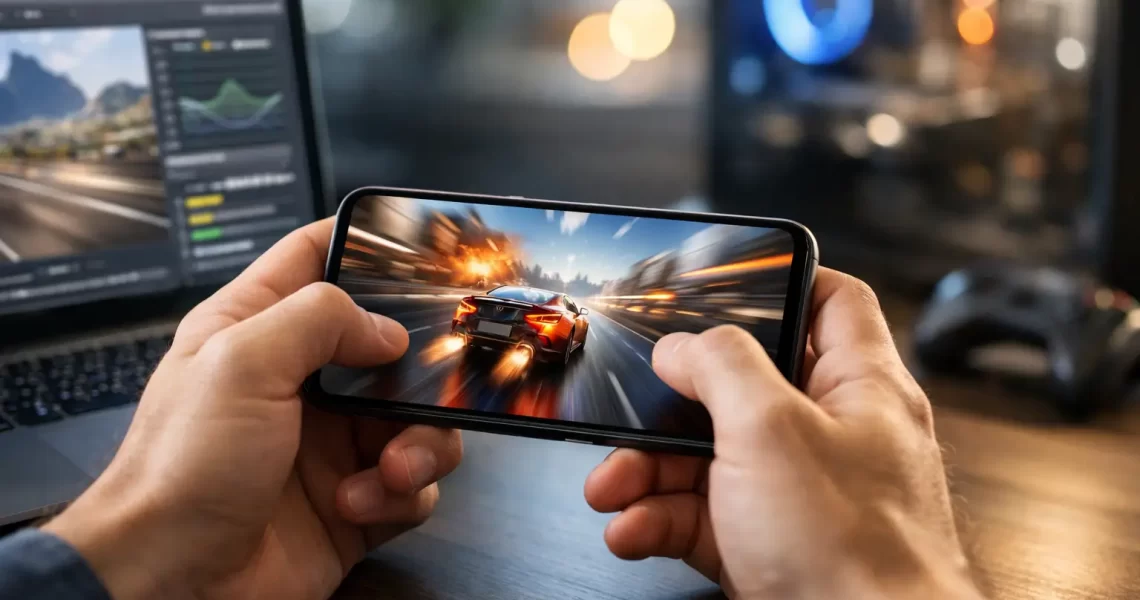
Graphics Optimization for Faster Mobile Games
10 September 2026A match can be decided before your aim, tactics, or loadout have a chance to matter. A sudden frame drop during a close fight, delayed touch response, or a phone that heats up after two rounds can turn a strong game into a frustrating loss. Graphics optimization is how you control that problem: balancing visual quality, frame rate, battery use, and device temperature so your game stays playable when the action gets heavy.
The goal is not to force every setting to maximum. The best setup is the one that gives your phone consistent performance. A stable 60 FPS with clear visuals usually beats a beautiful 90 FPS setting that crashes into stutters after ten minutes.
What Graphics Optimization Actually Changes
Mobile games use your device’s GPU to render textures, shadows, lighting, effects, characters, and maps. They also depend on the CPU, RAM, storage speed, display refresh rate, network connection, and thermal system. If one of those areas gets overloaded, gameplay can feel slow even when the graphics menu says everything is set correctly.
Graphics optimization reduces unnecessary strain and prioritizes the settings that matter most during real gameplay. For a competitive shooter, that may mean prioritizing frame rate, visibility, and touch responsiveness. For an open-world game, it may mean reducing draw distance and shadows while keeping textures high enough to read the environment clearly. For a racing game, consistent motion and fast controls may matter more than reflections.
That distinction matters because “high graphics” does not always mean better gaming. Extra visual effects can hide opponents, create heat, consume battery, and push a mid-range phone past its stable performance limit.
Start With Frame Rate, Not Visual Presets
Most games offer broad presets such as Low, Medium, High, Ultra, or HD. These are quick starting points, but they are not the best way to tune a game. A preset changes several settings at once, often including effects you do not need.
Set your target frame rate first. If your phone and game can maintain 60 FPS without major heat or drops, that is a strong target for most players. Devices with high-refresh displays may support 90 FPS or 120 FPS in selected games, but only use those modes if the performance stays stable. Higher frame rates can feel more responsive, yet they also increase battery drain and heat output.
After choosing a frame-rate target, adjust visual settings around it. If the game stutters, lower the settings with the biggest GPU cost before cutting resolution or frame rate. Shadows, anti-aliasing, ambient occlusion, reflections, bloom, and particle effects are frequent performance hitters. Turning down one or two of these can produce a bigger result than dropping every setting to Low.
Adjust the Settings That Cost the Most
Not all options affect performance equally. Focus on the settings that can free up processing power without making the game look broken.
Resolution and render scale
Resolution controls how many pixels the game renders. Render scale does something similar by changing the internal resolution before the image reaches your display. Lowering either one can provide a noticeable FPS boost, especially on older devices, but pushing it too low makes text, distant targets, and map details harder to read.
For competitive games, use the lowest setting that still keeps enemies and important visual cues clear. You do not need cinematic sharpness to win, but you do need readable information.
Shadows and lighting effects
Dynamic shadows, volumetric lighting, screen-space reflections, and advanced post-processing can look impressive in trailers. During a ranked match, they are often the first settings worth trimming. These effects add workload every second, particularly in busy scenes with explosions, smoke, water, or multiple players on screen.
Lower shadows before lowering texture quality. Texture quality mostly affects how surfaces look, while shadow quality can hit frame consistency much harder.
Effects and particles
Explosions, weather, muzzle flashes, fog, and ability effects can overload a device when several players engage at once. Lowering effects quality helps prevent the exact frame drops that show up during team fights or final circles.
This setting also has a visibility benefit. Cleaner visuals can make movement, crosshairs, and enemy outlines easier to track.
Texture quality
Textures use device memory. If a game reloads textures late, shows blurry surfaces, or closes unexpectedly, your phone may be short on available RAM or graphics memory. Reduce texture quality one step and test again. If the game stays stable, you found a better balance.
High textures can still be worth using when your device has enough memory and the game remains smooth. This is one of the settings where your hardware matters more than a universal recommendation.
Reduce Heat Before It Reduces Your FPS
Thermal throttling is a common reason a game starts strong and slows down later. When your phone gets too hot, it reduces processor and GPU speed to protect its components. The result is lower frame rates, delayed loading, dimming screens, and inconsistent touch response.
Avoid charging while playing when possible. Charging creates extra heat, and fast charging can make the problem worse. Remove thick phone cases for long sessions, play in a cooler room, and give the device a few minutes to cool between matches if it is already hot.
Background activity also adds heat. Close unused apps, pause large downloads, stop screen recording unless you need it, and avoid running several overlays at once. A game booster can help by clearing background processes and prioritizing gameplay resources, but it cannot turn entry-level hardware into a flagship device. Use performance tools to reduce waste, not to expect impossible results.
Clean Up Your Device Before You Blame the Game
Storage that is nearly full can hurt loading times and general responsiveness. Keep free space available for game updates, temporary files, recordings, and system operations. If a game suddenly performs worse after an update, clear its cache through your device settings when appropriate, then restart the phone before testing again.
Check for system updates and game updates too. Developers regularly fix crashes, optimize graphics pipelines, and improve support for newer chipsets. The reverse can happen as well: an update may add heavier visual features that affect older phones. If performance changes, compare your graphics settings after every major game update rather than assuming the old setup still fits.
Network lag is different from graphics lag, but players often confuse them. If your FPS counter stays steady while opponents teleport or actions register late, the issue is likely connection quality. Use reliable Wi-Fi or a strong cellular signal, avoid downloads in the background, and choose a server region close to your location. Lowering graphics will not fix a high ping problem.
Build a Setup for Your Game Type
Competitive shooters and battle royale games benefit from high frame rate, lower shadows, reduced effects, and clear visibility. Fast multiplayer games need consistency more than visual detail. If the game allows it, choose a clean crosshair and interface layout that keeps important information visible without blocking your view.
Racing and sports games benefit from stable motion and responsive controls. You can often lower crowd detail, reflections, and environmental effects while keeping the vehicle or player model quality at a comfortable level.
For RPGs, strategy games, and visually rich single-player titles, the balance may shift. You might accept 30 or 45 FPS if it lets you keep sharper textures and better world detail. There is no competitive penalty in a slower game, so visual quality can deserve more of the performance budget.
Test Changes Like a Player, Not a Benchmark
Do not judge settings from the first 30 seconds in a menu area. Test them in the most demanding part of the game: a crowded fight, a large map zone, a race with multiple effects, or a long session after the phone has warmed up.
Change one or two settings at a time and play several rounds. Watch for frame drops, touch delay, heat, battery loss, and visibility problems. If the game is smooth at the start but struggles later, your setup is too aggressive for sustained play. Drop effects or frame rate slightly, then test again.
A tuned device gives you fewer surprises. With smart graphics optimization, your phone spends less power on effects you do not need and more resources on the moments that decide the match. Set it up, stress-test it, and let your gameplay do the talking.