How to Lower Gaming Ping for Faster Matches
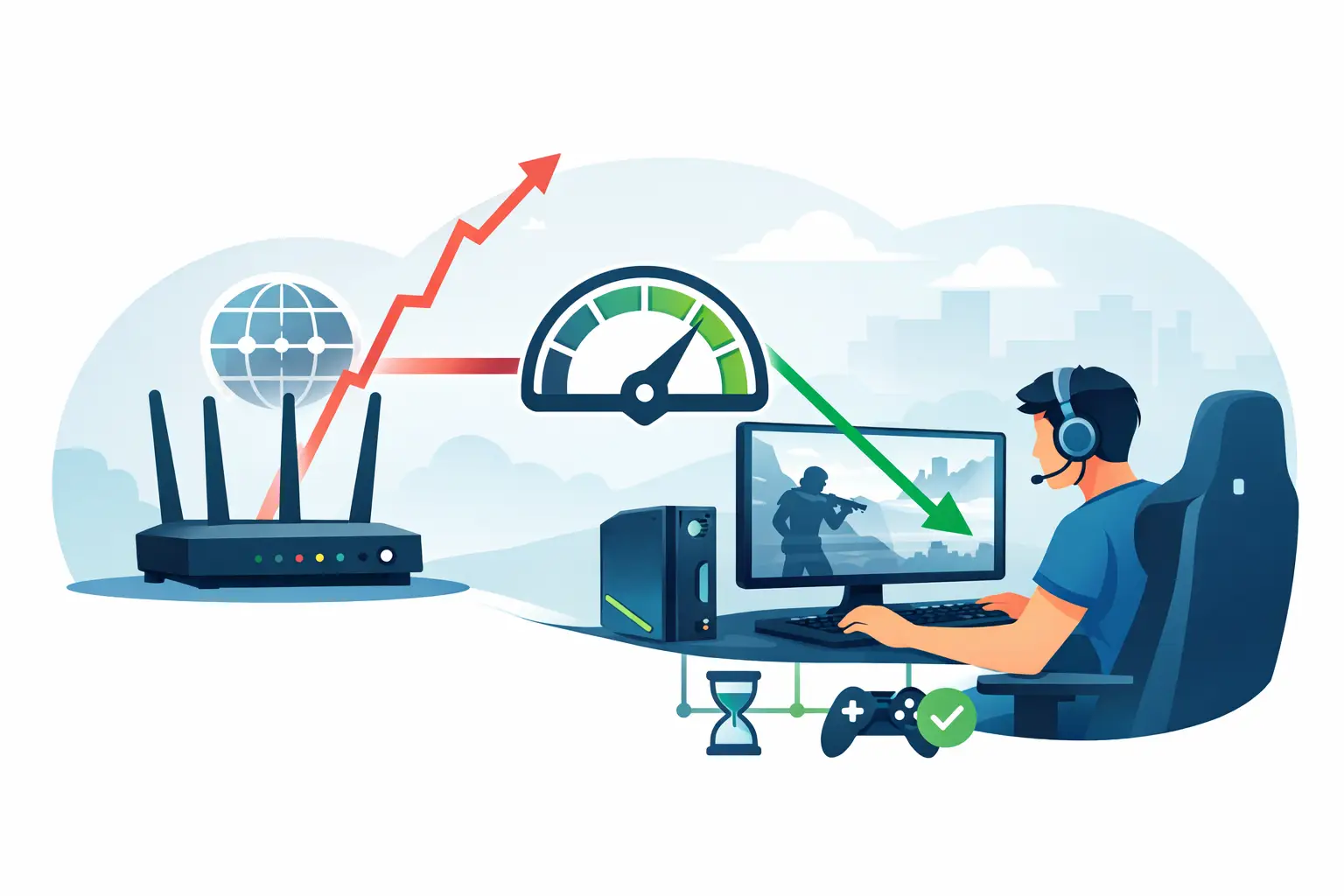
7 August 2026A fight can be decided before you see the enemy. If shots register late, opponents teleport, or your character rubber-bands behind cover, you need to know how to lower gaming ping – not just raise your FPS. Ping is the travel time between your device and the game server. Lower ping means your inputs reach the match faster, giving you more consistent movement, aim, and hit registration.
For mobile players, the best results usually come from fixing the connection path first, then removing the apps, settings, and network traffic competing with your game. Here is how to get a cleaner route to the server and stop avoidable lag from costing you matches.
What Ping Means in Mobile Games
Ping is measured in milliseconds, or ms. It tracks how long it takes for data to leave your phone, reach the game server, and return. A 20 ms ping feels much more immediate than 120 ms. The difference matters most in shooters, battle royales, fighting games, racing games, and any title where timing decides the outcome.
As a general target, under 50 ms is excellent, 50-80 ms is usually playable, and 80-120 ms can feel delayed in competitive modes. Above 120 ms, you may notice missed shots, delayed damage, or sudden position corrections. These numbers are not universal. A stable 75 ms connection is often better than ping that jumps from 30 ms to 180 ms every few seconds.
Do not confuse ping with frame rate. Low FPS makes your game look and feel choppy because your phone cannot render frames quickly enough. High ping means the network response is late. Both can create a “laggy” experience, but they need different fixes.
How to Lower Gaming Ping: Start With Your Network
The fastest ping improvements usually happen outside the game settings. Your phone can be powerful, but it cannot overcome an overloaded Wi-Fi network or a server on another continent.
Use Wi-Fi when the signal is strong
For most players at home, a stable 5 GHz Wi-Fi connection delivers lower and more consistent ping than mobile data. Stand close enough to the router that the signal stays strong, preferably in the same room. Walls, floors, Bluetooth devices, and crowded wireless channels can all weaken the connection.
Avoid 2.4 GHz Wi-Fi when 5 GHz is available. The 2.4 GHz band reaches farther, but it is more crowded and more likely to suffer interference. If your router supports Wi-Fi 6, use it, but do not expect the label alone to fix lag. Signal quality and network congestion still matter.
There is one exception: if your home Wi-Fi is overloaded or weak, 5G mobile data may give you better results. Test both connections in the same game mode at the same time of day. Use the one with the lower, steadier in-game ping – not simply the faster download speed.
Get closer to the router and reduce competition
Streaming video, cloud backups, large downloads, smart TVs, and other devices can create congestion. This is especially noticeable when someone starts a 4K stream or downloads a game while you are in a ranked match.
Before playing, pause heavy downloads and ask other users to avoid bandwidth-heavy activity if possible. Restarting a router can also help when it has been running for weeks, although it is not a permanent solution for a weak internet plan or poor router placement.
If you control the router, enable Quality of Service, often called QoS, and prioritize your gaming device. QoS does not create more bandwidth, but it can stop background traffic from jumping ahead of your match data.
Choose the closest server region
Distance is one of the few ping limits you cannot optimize away. A US player connected to a North American server will almost always get better ping than one connected to Europe, Asia, or Oceania.
Check the game’s region setting before queuing. Some games select a region automatically, but automatic selection can be wrong after travel, an account change, or a connection issue. Pick the nearest region manually when the game allows it. Also avoid joining a friend’s lobby if it forces you onto a distant server unless playing together matters more than competitive response time.
Stop Android Background Activity Before You Queue
Android phones multitask well, but active background processes can still compete for data, processor time, and memory. That can create ping spikes or make network lag feel worse.
Close apps you do not need before launching the game. Focus on video apps, social feeds, browsers with many tabs, file syncing services, app updates, and cloud photo backups. Turn off automatic updates during gaming sessions so your phone does not start downloading in the middle of a match.
Battery Saver can also be a problem. It may restrict background processing and reduce performance to preserve battery. That is useful when you need your phone to last all day, but it is the wrong mode for ranked play. Charge your phone or use a safe power source, then disable aggressive battery saving for the game session.
Game mode tools can help organize this setup. A focused Android game booster can reduce interruptions, clear unnecessary background activity, and make it easier to launch with performance settings ready. Tools such as TOLAN’s gamer utilities are most useful when they reduce device-side distractions. They cannot magically shorten the physical distance to a game server, so treat them as part of the setup, not a replacement for a stable connection.
Fix Ping Spikes, Not Just Your Average Ping
A speed test may show a good result while your game still stutters. The likely issue is jitter – rapid changes in latency. For example, your average ping might read 45 ms, but spikes to 250 ms during fights. That inconsistency is what causes rubber-banding and delayed actions.
Watch the in-game network indicator for a full match. If ping only jumps at certain times, your network may be crowded during evening hours. If it jumps whenever you move away from the router, the Wi-Fi signal is the issue. If it happens on both Wi-Fi and mobile data, check whether the game server itself is having problems.
Use this quick diagnostic order when lag appears:
- Test one match on 5 GHz Wi-Fi near the router.
- Test one match on mobile data with Wi-Fi turned off.
- Switch to your nearest available server region.
- Close background apps, downloads, and updates.
- Restart the phone and router, then test again.
Change one variable at a time. If you change the network, server, graphics settings, and booster settings all at once, you will not know which fix actually helped.
Lower Graphics Settings When the Problem Is Not Ping
A phone that overheats or runs out of processing headroom can feel like it has high ping even when the network is fine. Frame drops delay what you see on screen, make aim less predictable, and can cause touch controls to feel less responsive.
Set graphics to a level your phone can maintain during a long session. In competitive games, a stable frame rate is usually more valuable than maximum shadows, high-resolution textures, or visual effects. Choose a high or ultra frame-rate setting if your device supports it, then lower graphics quality until gameplay stays stable.
Heat is the hidden performance killer. Remove thick cases during long sessions if your phone gets hot, avoid playing under blankets or in direct sunlight, and give the device a few minutes to cool between intense matches. Do not use extreme cooling methods that can create condensation. Consistent temperature helps preserve consistent performance.
Be Careful With VPNs and “Ping Reducers”
A VPN does not automatically lower gaming ping. In many cases, it adds another stop between your phone and the game server, increasing latency. A VPN can help only when your internet provider routes traffic poorly and the VPN offers a better route. That is possible, but it is not guaranteed.
If you test one, compare in-game ping and stability with the VPN on and off. Keep it only if it improves both. Avoid apps that promise impossible results, such as turning a 150 ms overseas server into a 10 ms connection. No app can beat distance, server location, or the speed of the network itself.
When the Issue Is the Game Server
If your ping is suddenly bad in one game but normal everywhere else, the problem may not be your phone or internet. Check whether friends in the same region have the same issue, try another mode or server, and wait for the game’s service to stabilize. Reinstalling the game is rarely the first answer for a server-side outage.
The best competitive setup is simple: strong Wi-Fi or reliable 5G, the nearest server, no heavy background traffic, and graphics settings your phone can hold without overheating. Build that routine before you queue, then judge changes by real in-game ping and stability. A cleaner connection will not play the match for you, but it makes sure your best inputs arrive when they should.

Visionary: AI Video Generator
Download on Google Play!