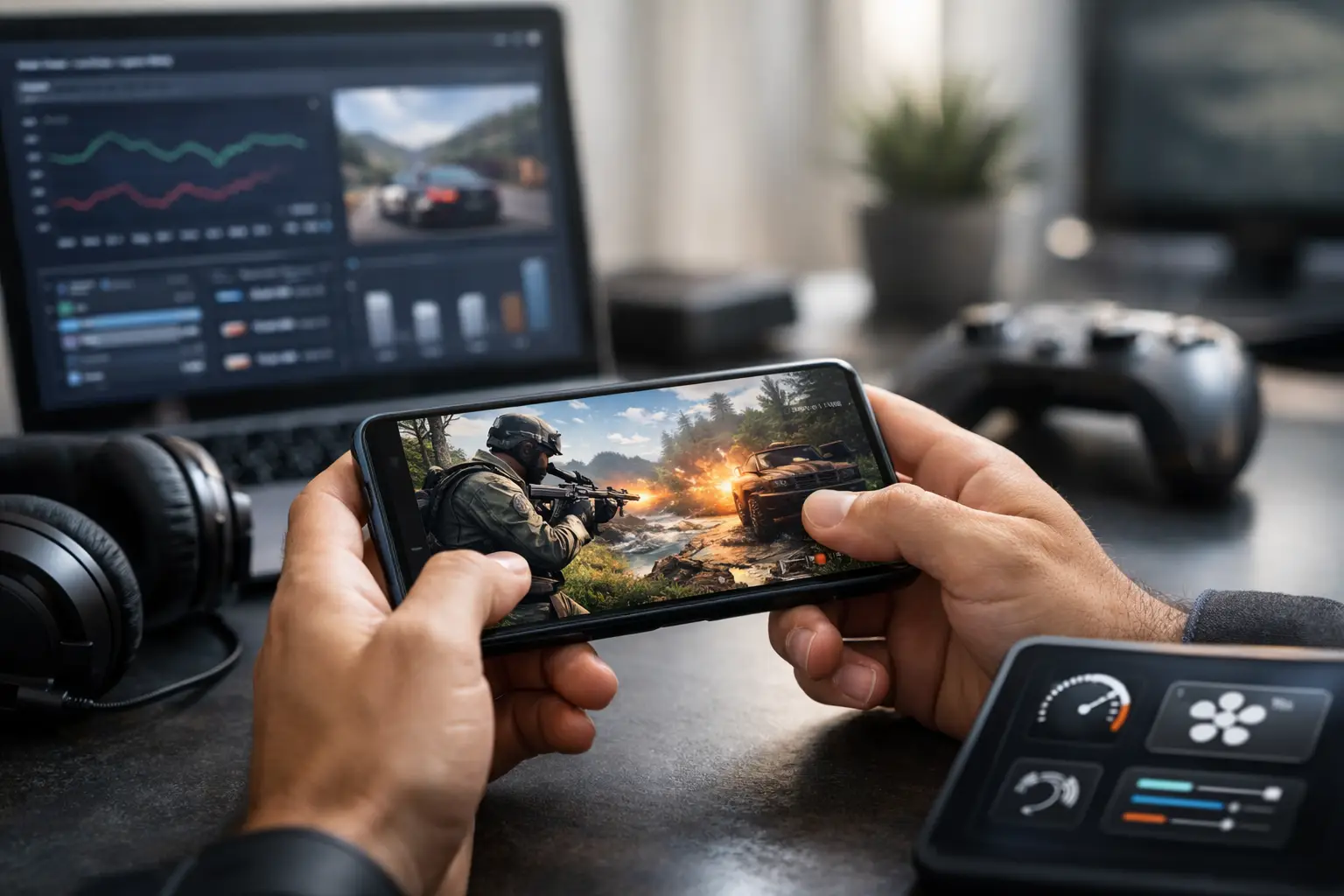
Mobile Graphics Optimizer Guide for Gamers
10 July 2026A bad graphics setup shows up fast in mobile games. Your frame rate drops in fights, touch response feels late, and the phone gets hot before the match is halfway done. A solid mobile graphics optimizer guide helps you avoid that trap by matching visual settings to what your device can actually handle.
For competitive players, this is not just about making a game look nicer. It is about keeping input responsive, holding stable FPS, and reducing stutter when the map gets busy. If you play on Android, the right optimization choices can make a bigger difference than most people expect.
What a mobile graphics optimizer guide should actually help you do
A lot of players hear “graphics optimization” and think it means maxing visuals without losing performance. That is rarely how it works. On most phones, especially mid-range devices, optimization means finding the best balance between image quality, frame rate, heat, and battery drain.
That balance changes from game to game. A battle royale with long draw distances stresses your phone differently than a close-range shooter or a racing title. Even two phones with similar specs can behave differently depending on cooling, software tuning, available RAM, and how aggressive the system is with background apps.
The goal is simple. Get the cleanest, most stable gameplay your hardware can maintain over time, not just for the first two minutes after launch.
Start with the settings that matter most
Some graphics options look technical, but only a few have the biggest impact in actual gameplay. Frame rate is the first one to lock in. If your game gives you a choice between higher graphics and higher FPS, competitive players usually benefit more from FPS. Smooth motion helps aiming, tracking, and reaction time more than extra shadows or finer texture detail.
Resolution is the next big lever. Lowering resolution often gives a noticeable performance gain because your GPU has fewer pixels to push. The trade-off is softer image clarity. On a smaller phone screen, that drop may be worth it. On a tablet or larger display, the blur can be more obvious.
Shadows, reflections, anti-aliasing, and post-processing effects also matter. These settings add visual polish, but they can hit performance hard. In fast-paced games, many players reduce or disable them because they do not improve decision-making. In some cases, lower effects can even make enemies easier to spot.
Textures are a little different. They usually affect VRAM and memory pressure more than raw frame rate, though that depends on the game engine. If your phone has limited RAM, very high textures can cause hitching and asset loading delays. If your device has enough headroom, medium or high textures may be fine even when other effects stay low.
The best optimization strategy depends on your phone class
Entry-level and older Android phones need aggressive tuning. That usually means low graphics, medium or low resolution, reduced effects, and closed background apps before launch. The target here is stability. Chasing visual quality on weak hardware often creates thermal throttling, and once throttling starts, performance gets worse match after match.
Mid-range phones have more room to work with, but they still benefit from smart prioritization. In most cases, medium graphics with high frame rate is the sweet spot. You may be able to raise textures or view distance a bit, but only after confirming that your FPS stays steady during heavy action.
Flagship phones can push more, but they are not immune to bad settings. Running every option at max can still create heat buildup, battery drain, and long-session frame drops. If you play ranked or tournament-style matches, a slightly lower graphics preset with a higher and more stable frame rate is often the smarter setup.
Why heat changes everything
A phone can feel fast in the lobby and still fall apart in a real match. Heat is usually the reason. Mobile chips boost performance when they have thermal headroom, but once temperatures rise, the system starts reducing clock speeds to protect the hardware.
That means your best-looking settings may only work for a short time. A setup that holds 60 FPS for three matches is better than one that spikes high and then stutters. This is where a practical graphics optimizer mindset matters. Test settings over longer sessions, not just one quick round.
Charging while gaming makes this worse. So does high screen brightness, poor airflow, and lots of background activity. If your phone gets hot fast, lower effects before lowering FPS. If that is not enough, reduce resolution next.
A real mobile graphics optimizer guide focuses on stability first
The smartest way to optimize is to change one setting group at a time and test under pressure. Load into the game mode you actually play most. Stand in crowded areas, trigger fights, drive fast across the map, or do whatever usually causes lag. Benchmarking in an empty training room is useful, but it is not the full story.
Start with frame rate. Set the highest FPS option your phone can realistically hold. Then lower heavy visual effects until the game feels stable. After that, adjust resolution and textures if needed. This method is faster than randomly changing everything and hoping for the best.
It also helps you spot what your device is bottlenecking on. If lower resolution gives a huge gain, your GPU is under pressure. If closing apps and reducing textures helps more, memory may be the bigger issue. If performance starts strong and then fades, heat is likely the problem.
What external optimizer tools can and cannot do
This is where many players get confused. A graphics optimizer app or game booster can help, but it is not magic. Good tools can simplify setting control, reduce unnecessary background load, improve launch consistency, and make it easier to switch between performance profiles.
What they cannot do is create hardware power your phone does not have. If a game is too demanding for your device, no app can turn a weak chip into a flagship one. That said, utility-focused tools can still make a meaningful difference by removing wasted overhead and helping you tune settings more precisely.
For Android gamers, that practical layer matters. You want faster access to performance options, fewer interruptions, and cleaner gameplay behavior. That is why many users look for dedicated tools instead of relying only on default phone settings. A focused app from a utility-first developer like TOLAN fits that need when the goal is smoother play, not extra clutter.
Common mistakes that hurt performance
One of the biggest mistakes is copying another player’s settings without matching their device. A setup that runs perfectly on a newer Snapdragon phone may run badly on an older MediaTek device. Even refresh rate support can vary by model.
Another mistake is chasing visual presets instead of results. “Ultra” sounds better than “Smooth,” but if your phone drops frames during recoil or close fights, the label does not matter. Competitive advantage comes from consistency.
Players also underestimate storage health. If your phone is nearly full, overall performance can dip. The same goes for outdated software, bloated background apps, or gaming with battery saver enabled. These are not glamorous fixes, but they matter.
Finally, some users keep every overlay running at once – chat bubbles, recording tools, live wallpapers, floating widgets. Each extra layer can steal resources. If you are optimizing for gameplay, trim the extras during sessions.
Best settings mindset for different goals
If you care most about ranked play, prioritize high FPS, low input delay, and low visual noise. Lower shadows, lower effects, and moderate textures usually make sense here. If you care more about casual play or open-world visuals, you can raise detail settings and accept some frame rate loss.
There is also a battery angle. High FPS drains power faster, so if you game away from a charger, a balanced preset may be smarter than maximum smoothness. The right answer depends on whether your priority is competition, visuals, session length, or device temperature.
That is why a good mobile graphics optimizer guide is not about one universal preset. It is about making better trade-offs on purpose.
How to know when you are done optimizing
You are done when the game feels predictable. No sudden hitching in fights. No major FPS collapse after 20 minutes. No touch delay when things get busy. The visual quality should be good enough that you can track targets clearly without pushing the phone into heat problems.
If you keep tweaking after that, you are probably chasing tiny gains. At that point, focus on consistency and actual match performance instead of menu screenshots. The strongest setup is the one that lets you play hard without your phone fighting back.
Mobile graphics optimization is really about control. When you understand what each setting costs, you stop guessing and start building a setup that works for your device, your game, and your play style. Get that right, and smoother matches stop feeling random.