How to Improve Touch Response for Gaming
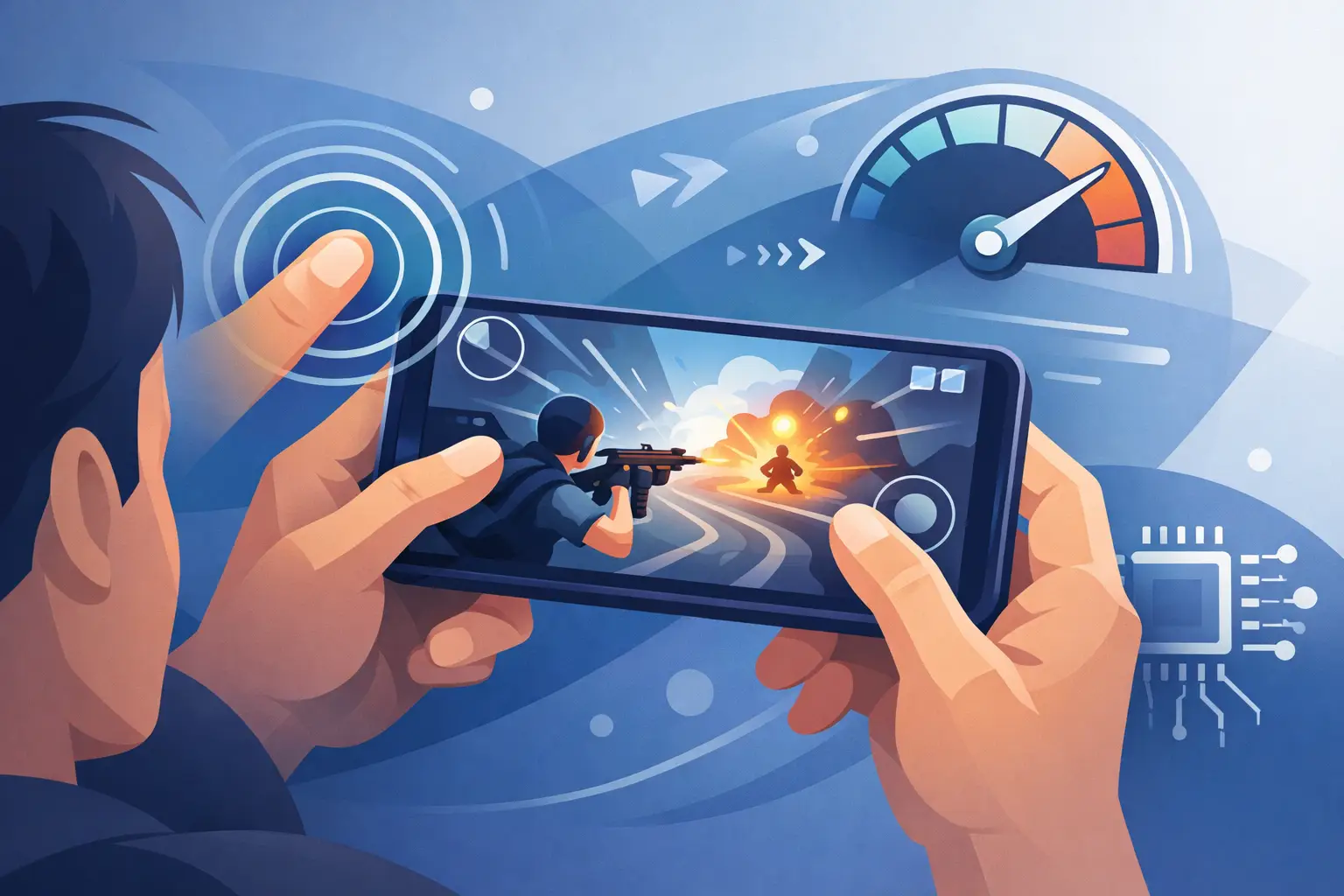
14 July 2026A lost gunfight can happen before your aim even moves. You tap to fire, swipe to track, or pull a skill button, but the action lands a fraction late. To improve touch response for gaming, you need to reduce the delay between your finger, the screen, Android, and the game itself. That is not always one setting. It is usually a stack of small fixes that makes your phone feel faster when the match gets hectic.
What Touch Response Actually Means in a Game
Touch response is the speed and consistency with which your phone detects a touch and turns it into an in-game action. It is often confused with frame rate, but they are different. A game can look smooth at 60 FPS while still feeling slow to aim because touch input is delayed, missed, or interrupted.
Your result depends on several connected factors: touch sampling rate, display refresh rate, screen condition, system load, thermal limits, network stability, and the game’s own control settings. A high refresh-rate panel can make movement look cleaner, for example, but it will not fix a dirty screen, an overloaded background process, or a game running in battery-saver mode.
The goal is not to chase marketing numbers. The goal is consistent input: every tap registers, every swipe tracks correctly, and your controls feel predictable from the first round to the last.
Start With the Screen: The Fastest Touch Response Fixes
Before changing system settings, check the physical layer. Mobile gaming is all touch input, so a small problem on the display can create a big problem in a competitive match.
Clean the screen with a soft microfiber cloth and remove moisture, oil, dust, or residue. Fingers can drag unpredictably across a dirty panel, especially in games that need fast horizontal swipes. If you use finger sleeves, test them with your current screen protector. A sleeve that feels smooth on bare glass may feel sluggish or inconsistent on a textured protector.
Screen protectors are another common variable. Thick, low-quality, cracked, or poorly applied protectors can reduce sensitivity around the edges and make rapid taps less reliable. This does not mean every protector hurts gaming performance. A good thin protector is usually fine. But if touch issues started immediately after installing one, that is a useful clue.
Also avoid playing while the screen is extremely hot. Heat can make the device throttle performance and can affect how comfortable and controlled your fingers feel. If your display becomes hot enough to dim, stutter, or feel sticky, take a short break before the next ranked session.
Check for accidental-touch problems
Many Android phones include accidental touch protection or pocket-mode features. These are useful when a phone is in a bag or pocket, but aggressive settings can interfere with edge inputs in landscape mode. If your fire, crouch, or joystick button sits near the screen edge, test one match with that feature disabled.
Do not disable safeguards permanently without testing. The right setup depends on your grip, your case, and the game’s button layout.
Improve Touch Response for Gaming in Android Settings
Your phone’s display and power settings can quietly limit how responsive a game feels. Open your device settings and look for display refresh rate, touch sensitivity, game mode, battery controls, and performance profiles. Names vary by manufacturer, but the idea stays the same.
Set the display to its highest available refresh rate when gaming, such as 90Hz or 120Hz. Higher refresh rates reduce the time between displayed frames, which makes aim movement and scrolling look more immediate. The improvement is most noticeable in shooters, battle royale games, racing games, and rhythm titles.
A higher refresh rate uses more battery and can add heat, so it is not automatically the best all-day setting. For competitive sessions, it is usually worth enabling. For casual play on an older phone, a lower setting may provide steadier performance over a long session.
If your phone has a touch sensitivity or screen protector mode, enable it only if you use a protector or notice missed touches. It can improve detection through an extra layer, but it is not a universal “faster touch” switch. Test it in training mode, then keep the option only if your taps feel more reliable.
Turn off Battery Saver before launching demanding games. Battery-saving modes may reduce CPU speed, background activity, refresh rate, vibration, and network behavior. Those trade-offs are great when you need your phone to last until the end of the day. They are bad when you need a quick scope drag to register right now.
Use Game Mode with intent
Built-in game modes can block notifications, prioritize the game, limit accidental gestures, and offer performance presets. Set the game to a performance-focused profile if your device provides one. This can help reduce interruptions and keep more resources available for the game.
Be realistic about what game modes can do. They cannot create hardware your phone does not have, and they cannot repair a weak server connection. They are best used as part of a clean setup rather than as a one-tap miracle fix.
TOLAN’s Android-focused gaming tools follow the same utility-first approach: reduce avoidable friction, keep the device focused, and make every match feel more controlled.
Clear System Load Before You Queue
Touch delay is sometimes a performance problem wearing a different name. When the phone is struggling with heat, low memory, storage pressure, or heavy background activity, the game may process input less consistently. Your swipe is detected, but the action on screen arrives late because the device is busy doing too much else.
Close apps you are actively using before you play, especially video editors, browsers with many tabs, social apps, screen recorders, and downloads. You do not need to force-close every process after every match. Android manages memory on its own. But shutting down obvious resource-heavy apps before a long gaming session can help an entry-level or older device stay stable.
Keep enough free storage available for game updates, cached assets, and temporary system files. A nearly full phone often feels slower everywhere, not just in games. Update both the game and Android when stable versions are available, since updates can fix control bugs, compatibility issues, and performance regressions.
Restart your phone if touch behavior suddenly becomes inconsistent after hours or days of use. It is simple, but it clears stuck processes and temporary system issues that can affect gaming performance.
Fix the Settings Inside the Game
A responsive display will still feel wrong if the in-game control layout fights your hands. Open the game’s control editor and make high-priority buttons large enough to hit consistently. Fire, aim, jump, crouch, reload, and ability buttons should not overlap or sit where your palm naturally touches the screen.
For shooters, sensitivity should match your device and play style. If your aim feels delayed, do not immediately raise sensitivity to the maximum. Excessive sensitivity can make a small late movement become a large overcorrection. Increase it in small steps and test the same drill repeatedly: track a moving target, flick between two targets, then control recoil at medium range.
Graphics settings matter too. If your phone drops frames in fights, reduce visual effects before reducing frame rate. Lower shadows, anti-aliasing, render resolution, and unnecessary effects can free performance for more stable controls. Choose the highest frame-rate option your phone can hold consistently, not the option that looks best for thirty seconds in a quiet lobby.
A stable 60 FPS often plays better than a 90 FPS setting that repeatedly falls into stutter. The same rule applies to high graphics presets. Competitive players need readable visuals and reliable input, not maximum visual detail at the cost of control.
Reduce Network Delay Without Confusing It With Touch Delay
Touch response and network lag can feel similar, but the fixes are different. If your buttons react instantly on screen but enemies teleport, damage registers late, or you get rubber-banding, the issue is likely network latency or server performance.
Use a stable Wi-Fi connection when possible, stay near the router, and avoid large downloads or video streams on the same network during matches. If cellular data is more stable in your area, test it. The better option is whichever delivers lower jitter and fewer connection drops, not necessarily the one with the highest speed-test number.
Test controls in an offline mode, training ground, or practice range. If swipes still feel delayed there, focus on your screen, phone settings, and performance. If the problem appears only in online matches, investigate connection quality and game servers.
When Hardware Is the Limit
Some touch problems are software issues. Others are signs that the device has reached its limits. A phone with a 60Hz display, modest chipset, aging battery, and limited cooling can still be playable, but it may not deliver the same fast feel as a newer gaming-focused device.
Watch for repeated ghost touches, dead zones, missed taps in the same area, random swipes, or input problems across multiple apps. Those symptoms can point to display damage or a failing digitizer rather than a game setting. Back up your data and consider professional repair if the issue continues.
If you are choosing your next Android phone for competitive gaming, prioritize a reliable touch panel, sustained performance, cooling, battery health, and software support over a single headline specification. A high touch sampling rate is useful, but it means less if the phone overheats after two matches.
Build a Consistent Pre-Match Setup
The best way to improve touch response for gaming is to make your setup repeatable. Clean the display, charge enough to avoid Battery Saver, use the refresh rate and performance mode that your phone can sustain, close obvious heavy apps, and play with a control layout you have actually practiced.
Then stop changing five settings after every bad match. Make one adjustment, test it in the same scenario, and keep it only when the difference is clear. Fast touch response is not just a phone feature. It is the confidence that when you make the move, your game is ready to make it with you.

Visionary: AI Video Generator
Download on Google Play!