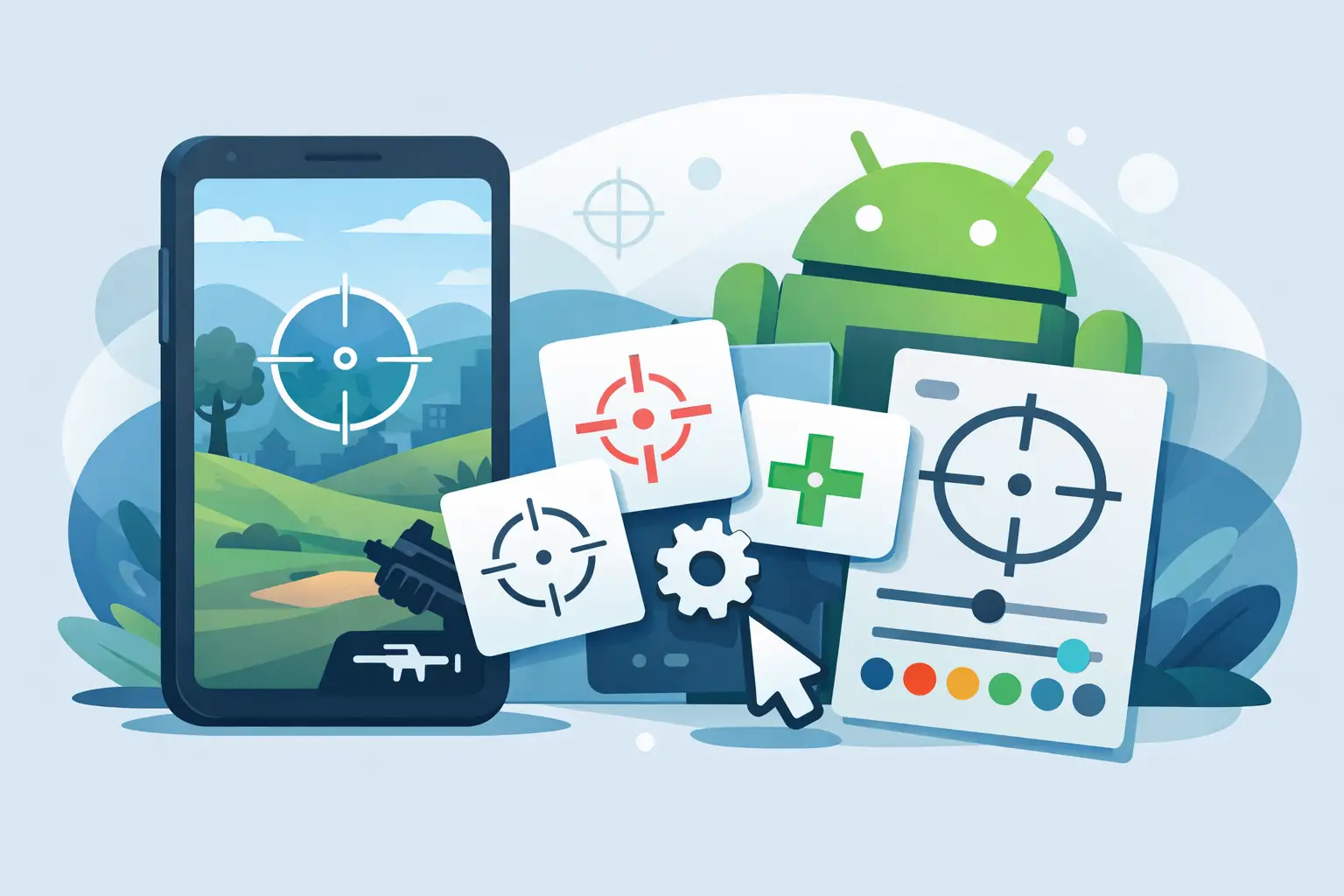
How to Add Custom Crosshair on Android Games
16 July 2026Your aim can feel inconsistent when a game’s default reticle is too wide, too dim, or disappears against bright effects. Learning how to add custom crosshair options gives you a fixed visual reference at the center of the screen, so your eyes spend less time searching and more time tracking targets. The best setup is not the flashiest one. It is the one you can see instantly without blocking the action.
For Android players, there are two practical routes: use the crosshair settings built into a game, or use a dedicated screen-overlay tool when the game does not offer enough control. Each has trade-offs. Native settings are usually the safest choice for competitive play, while overlays can offer more personalization but may not be allowed in every game.
How to Add Custom Crosshair on Android Games
Start by checking the game’s own settings before installing anything. Many shooters and battle royale games place reticle controls under Settings, Controls, HUD, Interface, or Accessibility. Look for options such as crosshair style, color, center dot, outline, thickness, opacity, and firing reticle.
Set the reticle while you are in a training range or a low-pressure match. A menu preview helps, but it cannot show how the crosshair looks over smoke, sky, grass, muzzle flash, and moving enemies. Test it where you actually aim.
If the game offers a center dot, begin there. A small dot or compact plus shape is easier to place on a target than a large open circle. Increase the outline or opacity only enough to keep it visible. A thick reticle may stand out, but it can hide a head-sized target at range.
Use the game’s native HUD tools first
Native crosshair settings are tied directly to the game. They resize correctly with your resolution, usually work with every display mode, and do not require extra Android permissions. They are also less likely to create compatibility issues after a game update.
The downside is limited choice. Some games only offer a few colors or a basic dot. If the available designs work for you, stay with them. A simple supported setting is better than a complicated setup that breaks mid-match.
Add a screen overlay when you need more control
A crosshair overlay app places a reticle above the game screen. This is useful for titles that do not include customizable reticles or for players who want a specific dot, ring, or cross design. TOLAN-style gamer utilities are built around this kind of quick, focused customization: choose the visual tool you need, configure it, then get back into the match.
After installing an overlay tool, Android will normally ask for permission to display over other apps. Enable that permission only for an app you trust. Then choose a crosshair shape, set its color and transparency, and position it at the exact center of the display. Most tools let you drag the reticle before locking it in place.
Do not assume an overlay is permitted just because it does not modify game files. Some games and tournaments restrict any third-party tool that appears over gameplay. Read the game’s rules and tournament requirements before using one in ranked modes or competitive events. If the policy is unclear, use the game’s built-in reticle or disable the overlay.
Build a Crosshair You Can Read Fast
A custom crosshair should reduce visual noise, not create more of it. The goal is fast target acquisition: you look toward an enemy, the center point is obvious, and you can make the shot without second-guessing where your screen center is.
Start with size. On a phone, a tiny center dot works well for precise tap fire and scoped weapons, but it can disappear during fast movement. A small plus shape gives you more visibility for close-range tracking. Keep the gap tight. A wide gap makes the target harder to center, especially when using shotguns, SMGs, or burst weapons.
Color matters just as much. Green and cyan often remain visible across darker maps, while magenta can stand out against grass and blue skies. No single color wins on every map. If your app or game allows it, use a bright inner color with a dark outline. That combination holds up better when the background changes quickly.
Opacity should be high enough to see but low enough to preserve the target. A fully solid, oversized reticle can cover crucial detail such as an opponent’s head, weapon peek, or movement direction. For most mobile players, a compact high-opacity dot with a thin outline is a dependable baseline.
Match the reticle to your weapons and role
There is no universal “best crosshair.” It depends on what you play and how you aim. A player who uses marksman rifles may prefer a fine dot for disciplined single shots. An aggressive close-range player may prefer a short plus or small circle that remains easy to track during recoil and strafing.
Avoid changing your reticle every session. Aim muscle memory develops when the center reference stays consistent. Give one design several days of real play before judging it. If your shots still feel off, change one variable at a time: size first, then color, then opacity.
Position It at the True Screen Center
A crosshair only helps if it sits in the right place. Phone aspect ratios, camera cutouts, display scaling, and game HUD layouts can make a visually centered overlay appear slightly off once gameplay begins. This matters most in games where the weapon model, camera, or aim-down-sights view shifts the visible center.
Open a practice area and aim at a small, stationary object. Fire several controlled shots without moving the camera. If the impacts consistently land above, below, or beside the reticle center, adjust the overlay by a few pixels and test again. Repeat in both standard view and aim-down-sights view if the game uses different screen layouts.
Also check the crosshair after rotating your phone or changing graphics settings. A resolution change can affect overlay alignment. Lock the screen orientation you use for gaming, then verify the position before an important match.
Test Before You Take It Into Ranked
A new reticle can feel strange for the first few rounds because your eyes are used to the old one. Use training mode, casual matches, or an aim drill to check whether it improves your control. Focus on three moments: snapping to a target, holding an angle, and controlling recoil during a longer spray.
If you lose sight of the reticle during effects or bright maps, increase contrast rather than making it much larger. If you keep overcorrecting your aim, the reticle may be too bold or too wide. If targets feel hidden at range, reduce the dot size or opacity.
Pay attention to device performance too. A lightweight overlay should not cause heat, frame drops, touch delay, or battery drain that hurts the match more than the crosshair helps. Close unneeded background apps and keep your graphics settings realistic for your phone. Smooth frame pacing and responsive touch input will do more for your aim than an elaborate reticle ever can.
Fix Common Custom Crosshair Problems
If the overlay does not appear over the game, check Android’s display-over-other-apps permission, then restart both the tool and the game. Some phones also restrict overlays through battery optimization or game mode settings. Allow the crosshair tool to run as needed, but avoid granting unrelated permissions.
If the reticle moves or vanishes after an update, reopen the overlay configuration and recalibrate it in training mode. If it appears behind the game interface, the game may block screen overlays by design. Do not try to bypass that restriction. Use the game’s supported HUD options instead.
If the crosshair looks good but your aim is not improving, look beyond the center point. Sensitivity, gyro settings, touch response, frame rate, and practice habits all affect accuracy. A custom reticle is a visual aid, not an auto-aim feature. It works best when it supports a stable sensitivity and a repeatable shooting routine.
The right crosshair should disappear from your thoughts once the fight starts. Set it up, test it honestly, respect the game’s rules, and keep the design simple enough that every pixel on screen still serves the play.